Skip to content

PC Game System Requirements

mm Marcus Chen 8 min read

What You Need to Know

Six Essential Facts

  • Minimum requirements describe launchability, not playable comfort or smooth frame rates.
  • CPU and RAM control frame-time stability; GPU and VRAM control visual fidelity.
  • SSD requirements are non-negotiable for modern open-world games with heavy streaming.
  • Driver and OS support windows matter as much as raw hardware specifications.
  • Requirements can shift after major updates and patches, sometimes for the better.
  • Your target resolution and frame rate define what specifications are good enough.

Building Your Hardware Profile

Start by building a personal PC games system requirements list that you can reuse for every purchase. It's not a spreadsheet for its own sake; it's a way to stop being surprised at checkout.

At minimum, track OS version, CPU model, GPU model, VRAM amount, system RAM, storage type—whether HDD, SATA SSD, or NVMe SSD—and free space, display resolution and refresh rate, and whether you rely on features like ray tracing, frame generation, or a specific controller.

Having this inventory means you can compare your system to any requirement sheet in under a minute. You'll immediately see whether you meet the baseline, where your bottlenecks are, and which settings tweaks or upgrades would actually matter.

This list evolves slowly—CPU and GPU change every few years, RAM and storage when you upgrade, display when you invest in a new monitor. Update it once and keep it accessible whenever you shop for a new game.

The fastest reliable way to translate a requirement sheet into an honest expectation involves five stages you can run in under five minutes.

First, lock your target: for example, 1080p at 120 fps in competitive modes, or 1440p at 60 fps with high settings. Second, identify the game's likely bottleneck from genre and engine—large city sims and open worlds pressure CPU and streaming; cinematic ray tracing showcases lean hard on GPU and VRAM.

Third, compare the developer's listed GPU and CPU to yours by tier, not by brand loyalty. A recommended RTX 2060 is about class, not the logo. Fourth, check for hard gates: OS requirement, DirectX or Vulkan requirement, SSD requirement, and any must-have features called out.

Fifth, plan the compromise: lower settings, use upscaling, cap frame rate, or accept a targeted upgrade. Requirements are the starting line, not the finish—read them like a contract, then play like you benchmark.


CPU, RAM, and Frame Stability

Where recommended gets misunderstood the most and why headroom matters for competitive play

Processing Power and Memory

CPU and RAM are where recommended gets misunderstood the most. A modern GPU can brute-force visuals, but it cannot fix stutter when the CPU cannot keep up with simulation, AI, and asset streaming. If you play competitive shooters at high refresh, strategy games, or anything with dense crowds, prioritize CPU headroom and stable clocks. As a practical 2026 baseline for new AAA releases, a modern 6-core slash 12-thread CPU and 16 GB of RAM is the floor for a smooth experience; 32 GB becomes the smarter call if you multitask—Discord, browser tabs, capture software—or mod heavily. GPU and VRAM describe two things at once: raw shader and ray tracing throughput, and memory capacity. When a requirements page lists a GPU family plus a VRAM amount, do not ignore the memory number. Running out of VRAM does not just lower FPS; it can trigger hitching and texture pop-in that feels like a bad port.

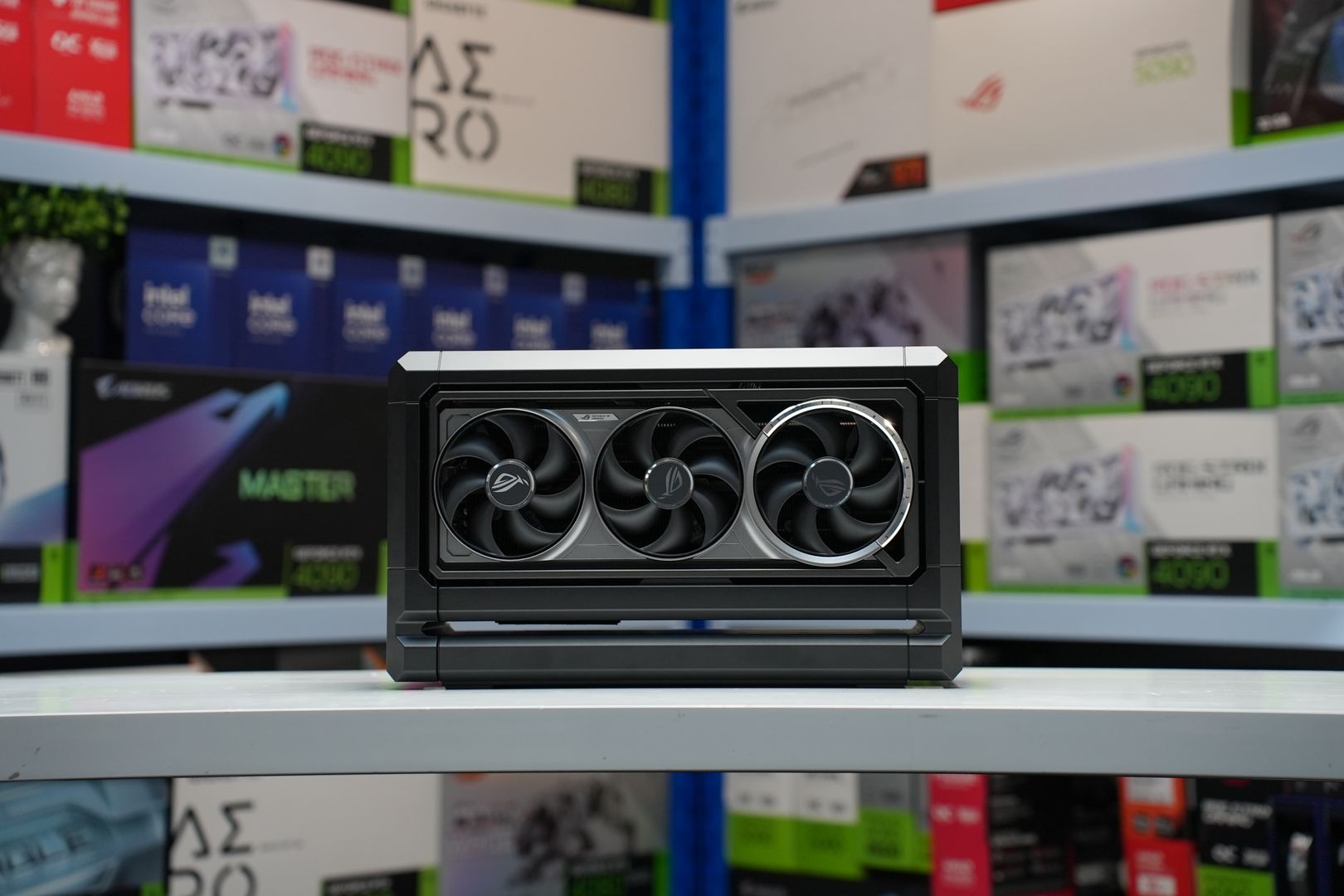
Graphics card with VRAM specifications
Modern GPU and VRAM requirements for 2026 AAA titles

Pre-Purchase Reality Check

Use a short, repeatable checklist before a purchase or before a big patch to verify your system is ready.

  1. Verify the OS requirement and driver support window
  2. Confirm whether the game needs DirectX 12 or Vulkan
  3. Look for an SSD requirement; if present, plan on NVMe if you can
  4. Check the VRAM number, not just the GPU name
  5. Identify whether ray tracing is optional or assumed
  6. Compare your CPU thread count and boost behavior to the listed CPUs
  7. Check RAM and leave overhead for background apps
  8. Read recent patch notes and community reports for stutter, shader compilation, and crash fixes

Real-World Performance Profiles

Two games, two performance profiles—understanding the personality of each title helps you tune settings effectively.

GPU-Heavy Showcases

Visually heavy games like Alan Wake 2 highlight just how next-gen their rendering assumptions are. Official requirements posted via Epic support and store listings push advanced GPU features and tend to punish older graphics architectures. If your system is borderline, you will often get better results by leaning on upscaling and texture discipline. Cap frame rate and prioritize frame-time stability, then use DLSS or FSR to reclaim visual headroom without overwhelming your VRAM.

CPU and Streaming Focused

Broad RPGs like Starfield have official requirements published via Bethesda support. These titles can chew CPU time in busy areas and benefit from consistent asset streaming. If your system is borderline, prioritize frame rate caps to stabilize frame times, reduce crowd and physics settings, and close background tasks before you assume you need a new platform. An SSD becomes critical here—moving the game from an HDD to an SSD can feel like a free performance patch in streaming-heavy titles.

Mod Load Considerations

Mods are the wild card. Texture packs increase VRAM use and storage footprint; ENB or ReShade-style effects can add GPU overhead; simulation mods can raise CPU load; and large mod lists can increase loading times and create stutter if they amplify asset streaming. If you mod, treat recommended as minimum for a modded playthrough, and budget extra RAM, extra VRAM, and extra SSD space from day one. Keep one eye on patches even after you buy.

Teen gamers engrossed in online computer game in a vibrant, modern gaming room.

Because schedules influence when you upgrade, here is a compact upcoming PC games release schedule snapshot based on confirmed PC dates listed by major release-calendar trackers as of late July 2026. Always assume dates can still move.

Settings and Upgrade Strategy

Solve performance gaps with settings tweaks first, then upgrade the right component for the actual problem

Smart Optimization Before Upgrading

One last reality check that saves money: do not upgrade for a single line item if you can solve it with settings and sanity. If you are short on GPU power, try a balanced preset, enable an upscaler, reduce shadows and volumetrics first, and keep textures within your VRAM.

If you are CPU-limited, cap the frame rate to stabilize frame times, reduce crowd and physics settings, and close background tasks before you assume you need a new platform. If you are storage-limited, moving the game from an HDD to an SSD can feel like a free performance patch in streaming-heavy titles.

If you do all of that and you are still below the experience you want, then the upgrade decision becomes straightforward: match the part to the problem. Stutter and inconsistent frame pacing usually point to CPU, RAM, or streaming—and sometimes just poor optimization—while low average FPS at higher settings points to GPU.

Requirements are the starting line, not the finish. Read them like a contract, then play like you benchmark. Treat requirements as a performance contract with missing fine print, and use your own hardware profile as the reference point.
Store pages rarely say whether the target is 1080p, 1440p, or ultrawide; whether recommended assumes upscaling; or whether ray tracing is enabled. If a game lists separate targets—for example, Cyberpunk 2077's Update 2.0 slash Phantom Liberty requirements split out ray tracing versus non-ray tracing—that is a sign the developer understands how wide the PC performance gap really is.

It is also your cue to match the right row to the way you actually play. Patches can rewrite the rules after launch, and keeping one eye on community reports and official update notes helps you stay ahead of surprises.

Remember that upscalers like DLSS, FSR, and XeSS can extend the life of borderline hardware if you are comfortable with the image quality trade-offs. They are especially effective when you are GPU-bound but have CPU headroom to spare.

The goal is to help you read requirements like a hardware reviewer, translate them into real-world expectations, and decide whether you should tweak settings, update drivers, or actually budget for an upgrade. July 2026 makes that question trickier than it looks, but a systematic approach turns guesswork into confidence.

Settings to Tweak First

  • Enable upscaling (DLSS, FSR, XeSS) to reduce GPU load
  • Lower shadow quality and volumetric effects for GPU savings
  • Cap frame rate to stabilize frame times and reduce CPU stress
  • Reduce crowd density and physics settings for CPU relief
  • Keep texture quality within your VRAM budget
  • Move game to SSD for streaming-heavy open worlds
  • Close background apps to free RAM and CPU threads
  • Update GPU drivers and check for game-specific patches